Help › Getting started
Get started with Fencekind.
Five steps from sign-up to an estimate in your customer's hands. About five minutes. The screens show an example project with example rates.
1Start your trial
Sign in with your email, then start your 10-day trial for $10 plus tax. After 10 days it renews at $199 a month for you and one teammate. Cancel before then to avoid the next charge. Start your trial
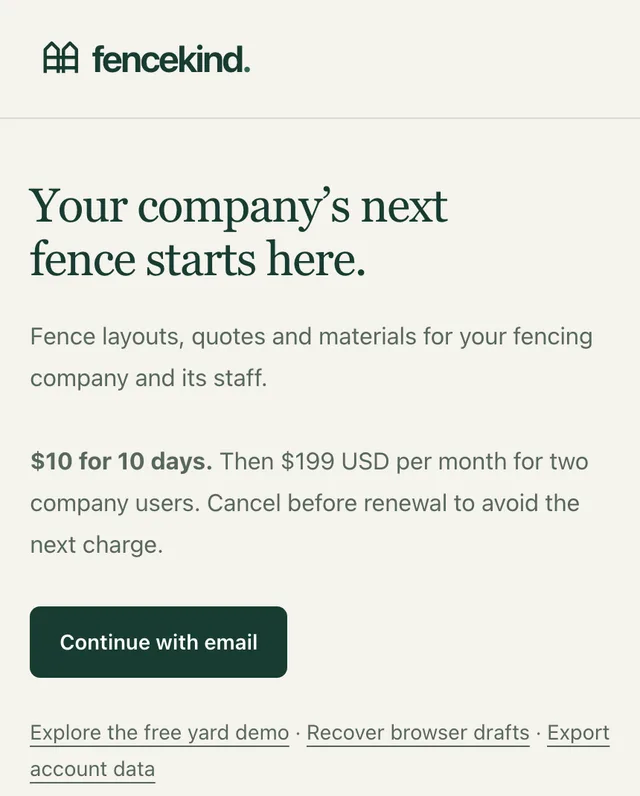
The trial offer before you sign in. 2Set your rates
Open your projects and press New fence to start your first job. Then choose the Quote tab. Under Rates and extras, enter your installed price per foot and your price per gate, and your tax rate. They apply as you type, and your next New fence starts with the prices you last entered.
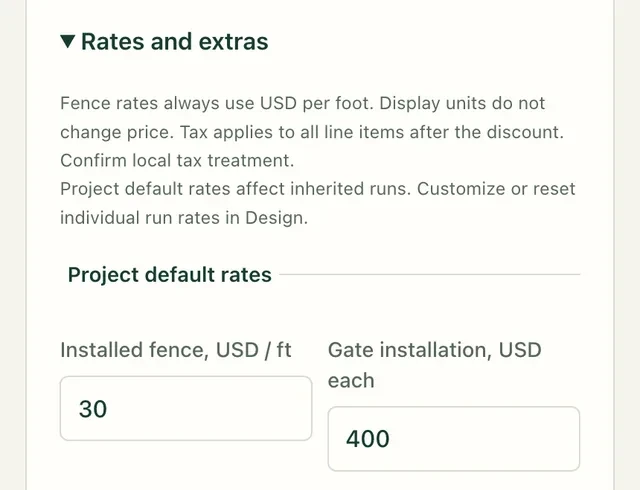
Example rates: $30 per foot and $400 per gate. They apply as you type. 3Enter your first job's runs and gates
Go back to the Design tab. Enter each run's length in feet, including any gate. Press + next to Runs & gates to add the next run, then pick its turn: straight, left 90°, right 90° or a custom angle. Press Add a gate and enter how far it starts from the beginning of the run and how wide it is. Footage, posts and price update as you type.
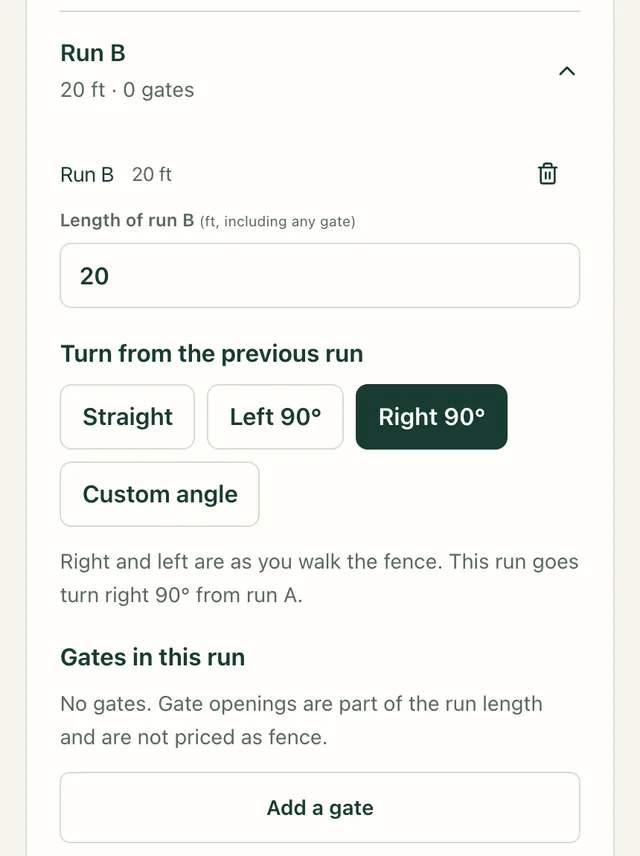
Example: a 20 ft run that turns right 90° from the first run. 4Send it to the customer
In the Quote tab, add the customer's name and job address. Press Print or save PDF to send a PDF. Or, under Present this fence to a customer, check the details, tick the box to include the price, and press Publish and get the link. Copy the link and text or email it to your customer. Anyone with the link can see it until it expires or you turn it off.
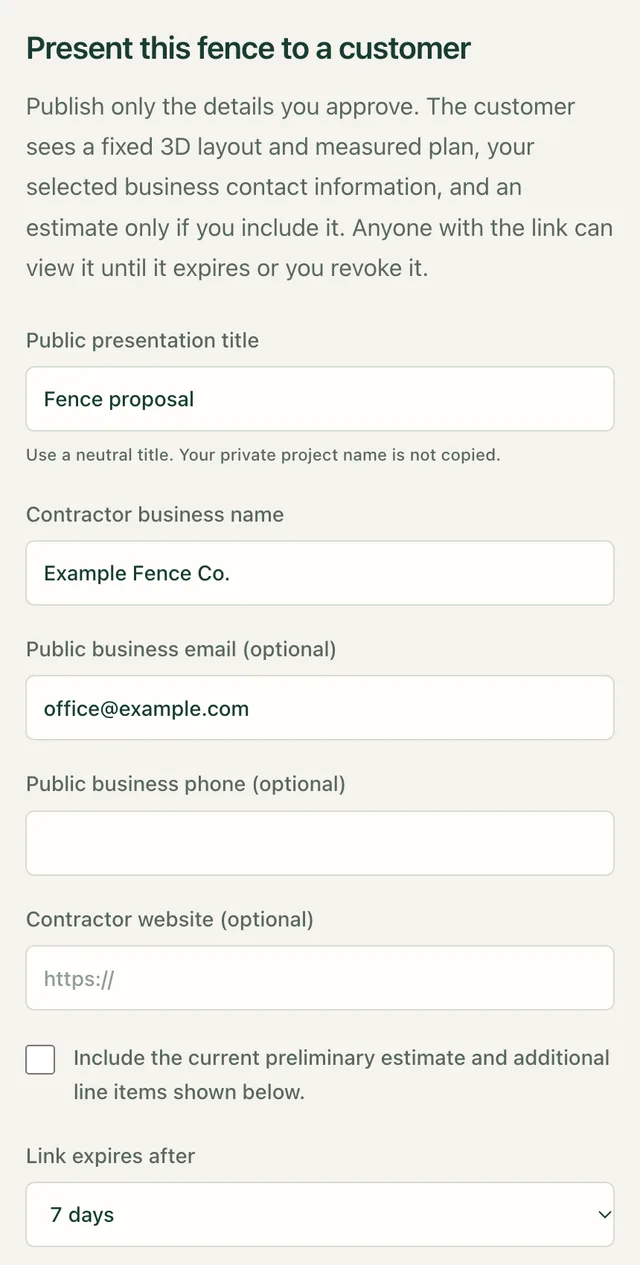
Example business details. The price is shown only if you include it. 5Invite your teammate and get the iPhone app
Your plan includes two people. Open Team, name your team, enter your teammate's email and press Send invitation. They sign in with that email and join. For site visits, get the iPhone app and sign in with your Fencekind account.
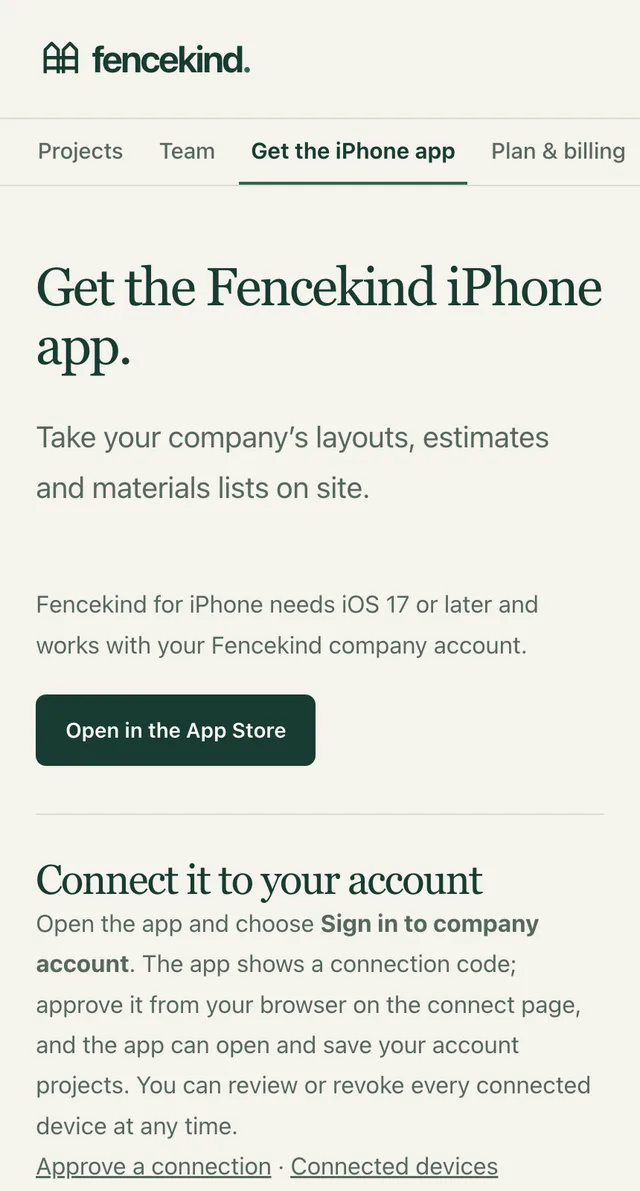
Get the iPhone app from the App Store.
Stuck? Get help or read the studio guide.